


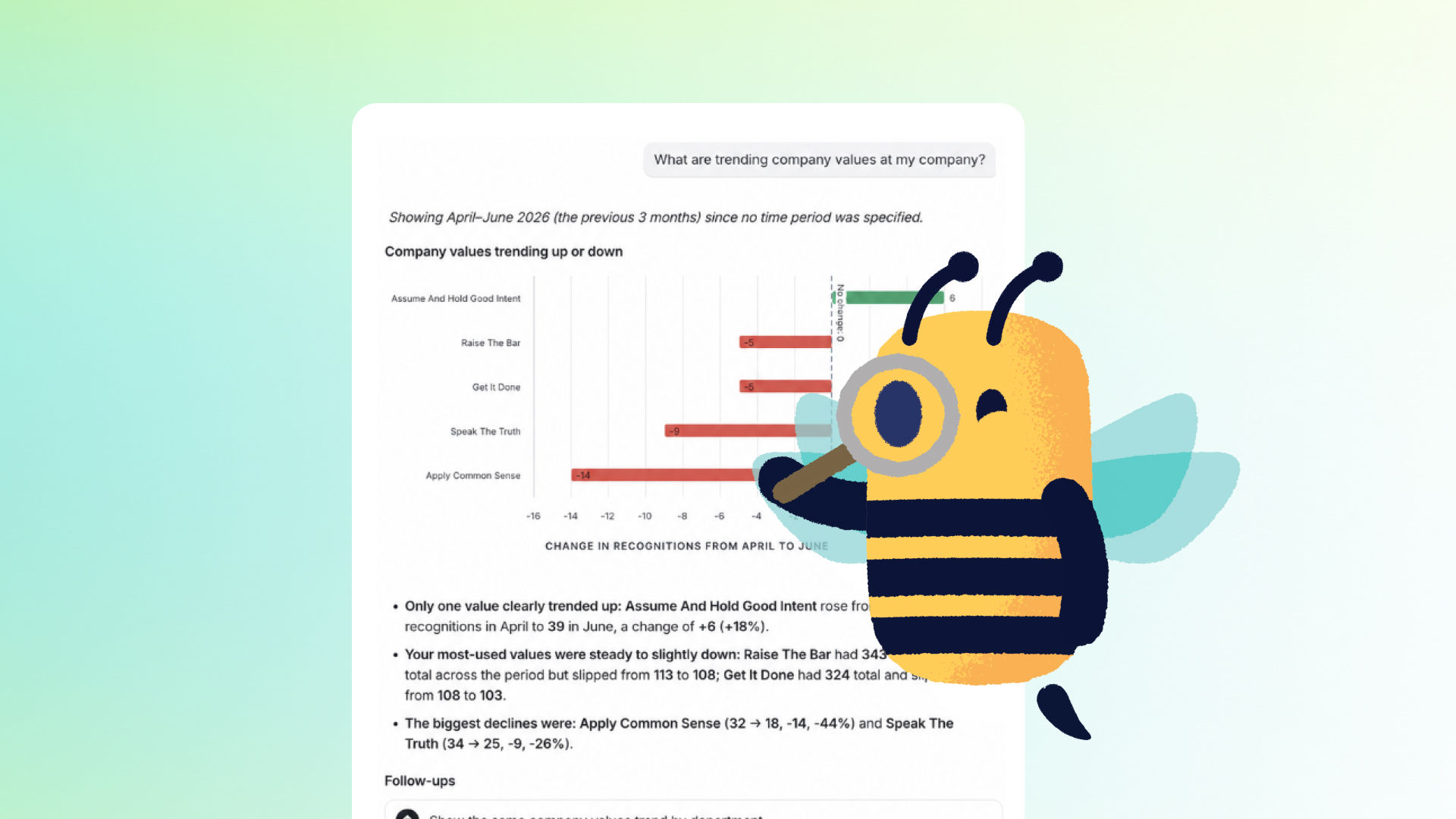
Bonusly admins are responsible for the health of recognition at their company. Between supporting users, managing settings, and running recognition programs, there's rarely time to dig into the data deep enough to see how everything’s going.
That’s exactly where Bizy comes in.
Bizy is Bonusly's recognition sidekick. Unlike a lot of AI tools, it helps your team do more of the stuff you partnered with Bonusly for in the first place: building an engaged, positive culture. For everyone on your team, Bizy helps notice who to recognize, and when, and why, and how.
But in addition to that, Bizy can help admins like you go even further. You can ask Bizy plain-language questions about participation, recognition quality, and program trends, and Bizy responds quickly and simply with the data you need.
This blog is for admins and people leaders running recognition programs through Bonusly. Here's everything you need to know.
Accessing Bizy settings
As a Bonusly admin, you have direct access and control over Bizy’s settings across your organization. Exploring these settings will help ensure your team gets the absolute most out of Bizy — and also give you more visibility into how they're using it.
Member access and billing at a glance
Open Company > Account settings > Bizy Settings.
From there, you can:
- Turn Bizy on for everyone or manage access person by person under Member access
- Review Utilization to see how people are using Bizy
- Decide which Connectors are available company-wide
- Manage Billing if you need to opt out of Bizy charges
- For customers on the Team plan, you can read more here about managing your Bizy seats.
Enabling Bizy connectors for your team
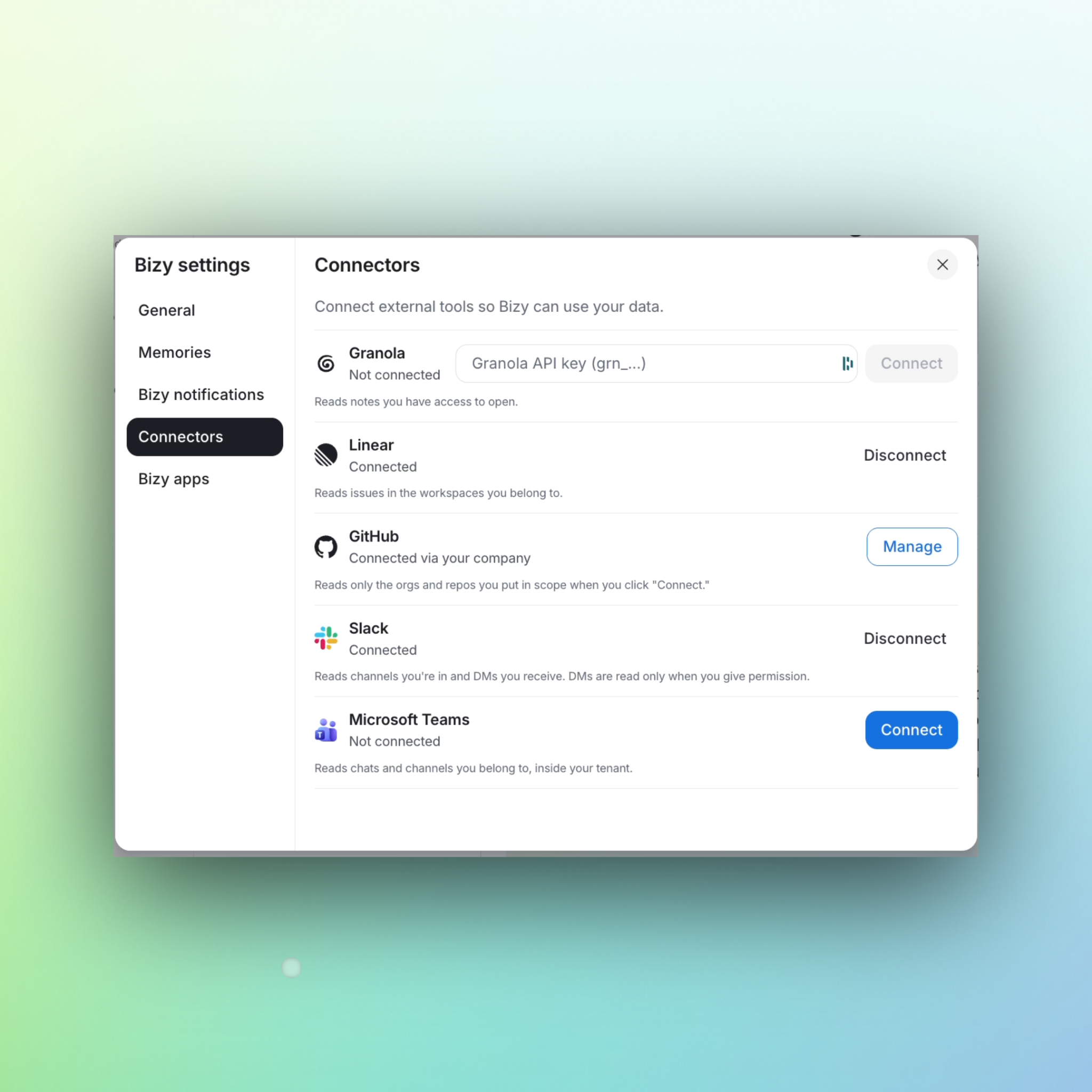
Great work doesn't only happen in Bonusly. It shows up in Slack threads, project updates, meeting notes, and the everyday collaboration where people step in to help each other out. Bizy can connect to collaboration tools beyond Bonusly, helping teams see and celebrate all of the great work worth recognizing.
As an admin, you can choose which connectors are available to your team (like Slack or Granola). Turning a connector on for your company does not connect anyone automatically. Each person must still link their own accounts.
When your team turns on an available connectors, Bizy adopts the exact same permission settings as the user, surfacing only what someone already sees.
We encourage you and your team to connect the tools you use. The richer the context, the better Bizy's recognition recommendations and catch-up summaries get.
See and act on your culture data
Bizy helps your teams give better recognition, more often. In addition to building a more engaged culture, there’s another byproduct of that increase in recognition activity: better culture data. Using that recognition and rewards data, Bizy can answer an admin's top culture-related questions: Are my teams engaged? What core values are used most? What does reward spend look like? Is recognition quality and frequency improving? What departments might need a little guidance?
With Bizy, you no longer need to export a report to get answers to these questions. You don't need to remember which filter works on which dashboard. Just ask your culture question, get a clear answer, and decide what to do next.
Try asking Bizy:
- "Which departments have the highest participation?"
- "Which managers haven't given recognition recently?"
- "Show me participation by location for the last 90 days."
- "Which teams are under-recognized compared to last quarter?"
- "What values hashtags are showing up most right now?"
Those prompts turn culture from a feeling into metrics you can walk into a leadership conversation with. Bizy can help you finally understand what’s happening on your team, spotting disengagement and showcasing high-quality recognition to use as examples for the rest of your team.
Better yet: Bizy can help you tie program health to the bigger story around team engagement and cultural health.
Manage your team right inside Bizy
Admins can also handle user management in a simple chat with Bizy, no trip to the admin panel required. Just ask Bizy to:
- Invite teammates. Paste an email and Bizy fills in the details, and preview before sending.
- Update profiles. Set managers or departments; grant or remove admin.
- Deactivate and reactivate accounts.
- Look people up. Try "Who's in Engineering?" or "Give me details on Thomas Smith."
- Do it in batches. Several invites, updates, or deactivations in one go.
Every change shows a confirmation card first, and nothing happens until you confirm.
This is especially useful when you're mid-conversation with Bizy about participation and realize certain people still need invites or a manager change should have landed last week.
If your company uses an HRIS
One important guardrail: the HRIS sync takes precedence.
If your account has an HRIS integration, Bizy will warn you that users are managed by the HRIS and that manual changes may be overwritten by the next sync.
- Manually added users. Bizy can edit or deactivate them (with a warning).
- HRIS-synced users. Bizy can read them back, but cannot edit them.
In short, if an HRIS is connected, Bizy's user management is read-only for synced teammates. Edits are blocked on purpose so you don't create conflicts with the sync. That keeps the source of truth clean while still letting you look people up and manage anyone who was added manually.
Know how people are using Bizy
In Bizy Settings, the Utilization view helps you see adoption across your company. You can also ask Bizy about utilization in chat when you want a quick read before a stakeholder update.
If usage is low, the fix is usually cultural, not technical. Try sharing some sample prompts, encourage your team to set up connectors, and send the end-user getting started post so people know what to try first.
Beyond Bizy: exploring Bonusly's MCP capabilities
Bizy lives inside Bonusly (and on desktop) as the recognition sidekick your people use every day to show up a little more intentionally for each other.
If you want to get more involved with Bonusly's AI capabilities, our MCP is an excellent place to start. The Bonusly MCP is an adjacent tool for teams already running on AI tools and workflows outside Bonusly.
Our MCP is an open standard that lets compatible AI apps securely connect to Bonusly. Once connected, those tools can work with recognition and rewards data within the same permissions you already have: look up activity, check balances, give recognition, pull context into reports you've built elsewhere.
That matters for admins who want Bonusly data in the external systems and agents they already have set up (Claude, Cursor, ChatGPT, and other MCP-compatible tools), without a custom API project.
Setup is straightforward: add https://bonus.ly/mcp as the server address in your AI tool, sign in to Bonusly, and approve access.
Note: MCP is not a replacement for Bizy. Bizy is built for teams first and foremost, and helps them give better recognition, more often, day in and out. Our MCP is how Bonusly data travels within external workflows and reporting stacks that your organization already runs.
For more, check out the following blog: Bonusly MCP: Tap into your recognition and reward data, wherever you work.
For more setup documentation, see Getting Started with Bonusly's MCP Server and the developer docs.
Getting started with Bizy today
- Open Bizy Settings. Confirm access and turn on the connectors your company is ready to support.
- Ask Bizy one culture question you usually save for a spreadsheet, like "Which departments have the lowest participation this quarter?"
- Share the end-user getting started guide so your team knows how to connect tools, use the Prompt Library, and try out the desktop app.
- Check Utilization after a couple of weeks and adjust enablement where it's quiet.
Your recognition program is already producing valuable cultural insights every day. Bizy helps you see those signals sooner and act more proactively to build happier, healthier teams.
Want the team walkthrough? Getting Started with Bizy, Your New Recognition Sidekick
Want the product overview? Blog: Meet Bizy · Help Center: Meet Bizy


